01 · Layouts
Six layouts that know how wide your screen is.
Focus centre puts your main window straight ahead with references either side. Studio, Columns and the rest change shape for 16:9, 21:9 and 32:9. One shortcut, ⌃⌥1 to ⌃⌥6.
Kumiko is a window manager for big and ultrawide Macs. Snap windows with the arrow keys, or say what you're working on and every window goes where it should.
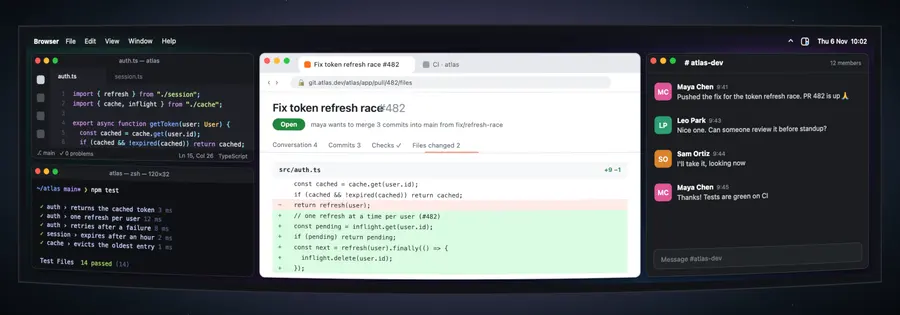
Focus centre puts your main window straight ahead with references either side. Studio, Columns and the rest change shape for 16:9, 21:9 and 32:9. One shortcut, ⌃⌥1 to ⌃⌥6.
Hold ⌃⌥ and press an arrow: the window goes to that side. Press it again and it changes width: half, two-thirds, a third (on an ultrawide it starts at a third). Two arrows in a row make a corner. Hold ⌃⌥ and the overlay shows where each arrow sends the window next.
Press ⌥Space and type. Kumiko looks at what's open, opens what's missing, brings the right browser tab to the front, and can hide or quit what's in the way. You see the plan first: ⇥ lets you drag it around, ↵ puts it in place, ⌘↵ saves it as a workspace.
Kumiko saves your windows when you sleep, lock or quit, and every 20 minutes. It brings back the tabs, the project folder, the file and the terminal's folder, not just the apps.
Turn on “Rearrange when windows open or close” for a display and its layout keeps itself tidy. A new window you're working in takes the main spot. Moving a window yourself never sets it off.
When your mic comes on and there's a call window, Kumiko moves the call to the top middle, right under your camera, with your notes underneath. When the mic goes off, everything goes back.
The moment you share in Zoom, Meet, Teams, Slack, Webex, FaceTime or Discord, Messages, Mail and your passwords blur. ⌃⌥P blurs whatever app you're in. ⌃⌥⇧P blurs everything private, or turns it all off.
A Focus routine starts from a calendar event, a Mac Focus, a time of day, or an app you open. It hides chat and mail, changes the layout, turns on a Mac Focus, and undoes all of it afterwards.
Put a window in the same place a few times and Kumiko offers to remember it. It also learns when you open things and offers them at the right time. All of it stays on your Mac.
Your ultrawide can run Studio while the MacBook next to it runs Halves. Kumiko remembers each one, and ⌃⌥0 puts the display you're on back to its usual layout.
Six layouts that know how wide your screen is.
Focus centre puts your main window straight ahead with references either side. Studio, Columns and the rest change shape for 16:9, 21:9 and 32:9. One shortcut, ⌃⌥1 to ⌃⌥6.
Type a request, or pick one. Drag windows to snap them, close them, start a call, share your screen. It's a pretend desktop, but it behaves like Kumiko.
Resume works with 45 apps. Hover one to see what comes back.
Your layout, your saved workspaces and the modes, one click away.
Every one is yours to pick in Settings.
Kumiko's actions show up everywhere macOS looks for them.
Learning, habits and saved workspaces stay on your Mac. AI requests send only this:
Ask for "the GitHub repo" and Kumiko brings forward the tab you already have open instead of a new window. Addresses are cleaned of tokens and sign-in codes first, and other tab titles are only read if you turn that on.
"Close VS Code and hide Slack" quits and hides apps the normal way, so anything unsaved still asks first. One Undo reopens them. If part of a request can't be done, Kumiko does the rest and tells you.
One licence covers 2 Macs. Export your learning, habits, layouts and workspaces from Settings and import them on the other one.
Layouts, snapping, Resume, Meeting, Share-safe, Focus and learning all work with AI switched off. AI just makes asking possible.
Simple requests can stay on your Mac. Bigger ones go to Claude, either through Kumiko AI with nothing to set up, or with your own key.
One licence, 2 Macs, every feature. The first 50 people pay less, and get a month of Kumiko AI free.
Sales open soon. The first 25 licences will be €9.

Kumiko is a window manager for Mac, made for ultrawide and big monitors. You can snap windows with the arrow keys, switch between six layouts that adapt to your screen's shape, or type what you are working on and let Kumiko arrange every window for you.
Any Mac on macOS 14 or later, with any display. It is made for 21:9 and 32:9 ultrawides and big 4K and 5K screens, and works on a MacBook too. Each display keeps its own layout.
No. The licence is a one-time payment for 2 Macs and includes every feature. Kumiko AI is an optional add-on for the command bar (€4 a month or €36 a year). You can use the free on-device model or your own Claude key instead.
€30 once. At launch, the first 25 licences are €9 and the next 25 are €18, and launch buyers get a month of Kumiko AI free.
Not yet. Kumiko needs a licence to run. The launch price is there so trying it costs very little.
Only what you typed, the names and titles of your open windows and, if you allow it, the address of the front tab in each browser with tokens and sign-in codes removed. Never window contents or screenshots. Nothing is stored after the plan comes back.
Accessibility, so it can move windows. It asks before reading browser tabs, and Calendar only if you use Focus routines. It never needs screen recording.
Yes, when you ask in words. "Close VS Code" quits it the normal way, so apps still ask about unsaved work, and "hide Slack" hides it. Undo brings them back.
Those snap one window at a time to fixed spots. Kumiko does that too, with arrow keys that adapt to ultrawide screens, and adds whole-screen layouts, saved workspaces that reopen your tabs and folders, meeting and screen-sharing modes, and a command bar that arranges everything from one sentence.
Yes. Email hello@jahvix.com within 14 days of buying and you get a full refund.
2. You can move a licence from one Mac to another in Settings.
Open the account page, enter the email you paid with and you will get a sign-in link. Your key, invoices and Kumiko AI subscription are all there.